
A nearby USB 3 device can interfere with Bluetooth, Microsoft warns
The suspect may already be on your desk. A repeatable comparison can save a trip through driver reinstalls and the headphone checkout.
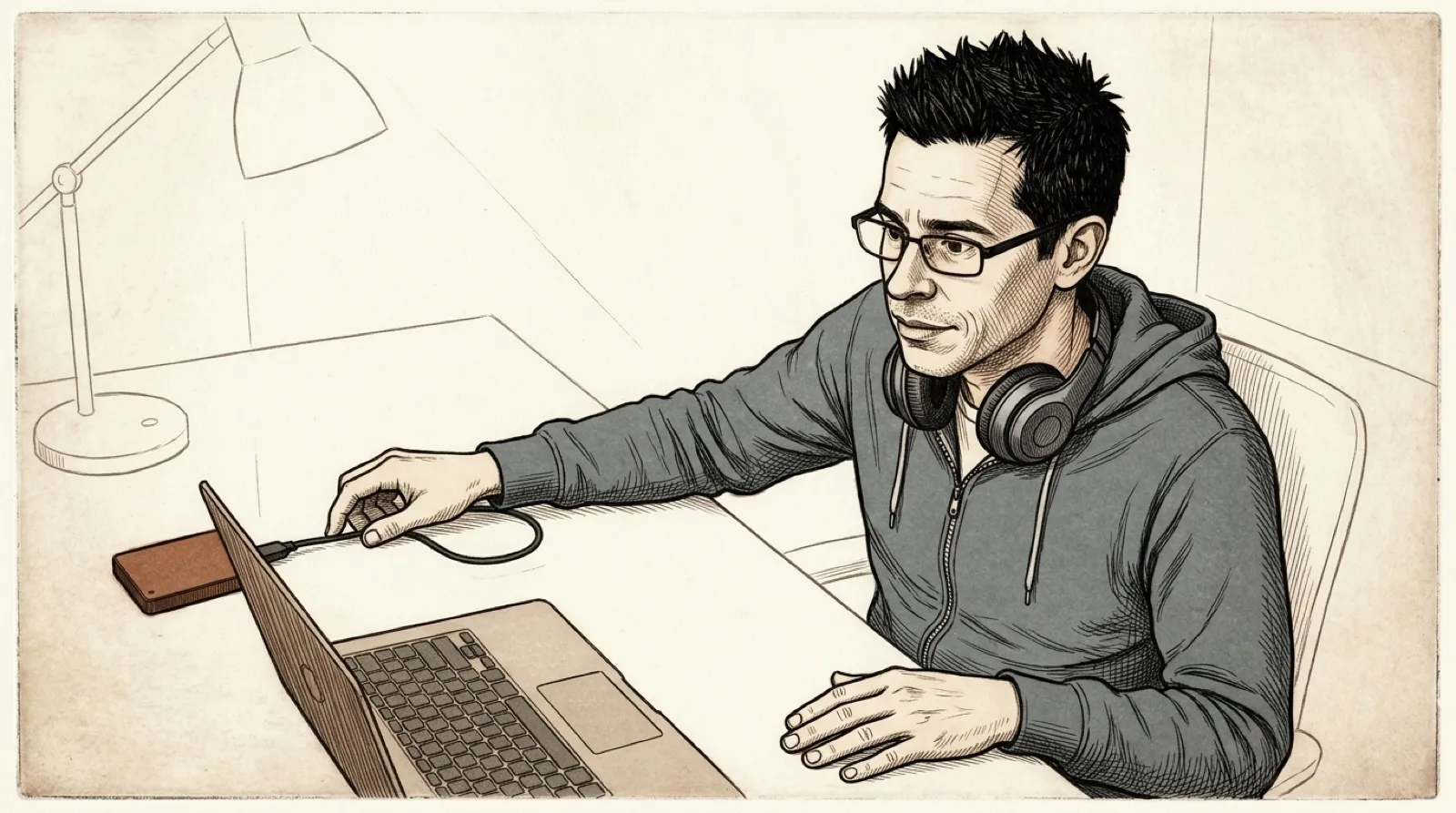
The USB peripheral beside your computer may deserve a look before the headphones get blamed again.
Microsoft’s Bluetooth checklist specifically calls out an unresponsive or sluggish Bluetooth device near another device plugged into a USB 3.0 port. Its support page says, “Unshielded USB devices can sometimes interfere with Bluetooth connections.” That is a conditional diagnosis, with a physical variable you can change before replacing hardware.
The page also covers battery, range and Bluetooth settings. Moving a USB device cannot establish the cause of every dropout; it can help isolate this particular one.
The warning sits in the same checklist as the obvious physical checks: a device needs power, charge and enough range to reach the PC. Those checks deserve their turn. Moving a USB drive while also charging the headphones and moving the laptop would leave three plausible explanations for an improvement. It would be a very productive afternoon with a very unproductive diagnosis.
A useful trial keeps the Bluetooth task familiar. For example, keep the computer and headphones in their usual positions and repeat the same audio with the peripheral safely disconnected. If the interruption returns when the original arrangement returns, you have a reason to investigate proximity further. That is a troubleshooting comparison, rather than a guarantee from Microsoft that this particular drive caused the fault.
A storage device also needs ordinary care during that trial. Finish transfers and use its normal safe-removal procedure before disconnecting it. Trading a stuttering song for an interrupted copy would make this a particularly annoying upgrade to the problem. If the device can stay connected while being moved farther away, that offers another position to compare without changing the rest of the setup.
Microsoft’s remaining steps address other failure paths. Its Windows 11 section includes toggling Bluetooth off and on, removing and pairing the device again, and checking drivers through Device Manager or the PC manufacturer’s site. Those are different interventions. Recording what changed after each one makes the next support conversation considerably more useful than reporting that everything was tried at once.
The proximity check won’t explain a computer that never had Bluetooth hardware. The same page starts by telling owners to check the PC’s specifications when Bluetooth is missing. A sluggish existing connection and an absent adapter may share a search query, but they need different evidence before anybody starts ordering replacement parts.
The useful result is a repeatable change in the symptom. If separation makes no difference, Microsoft’s remaining checks provide the next path, with battery and range still on the list.