
Pi-DOS boots a Raspberry Pi into DOS while Linux handles the hardware underneath
A custom startup supervisor, Windows-readable storage and familiar configuration files turn an emulator into a dedicated appliance. Peripheral compatibility still needs hands-on proof.
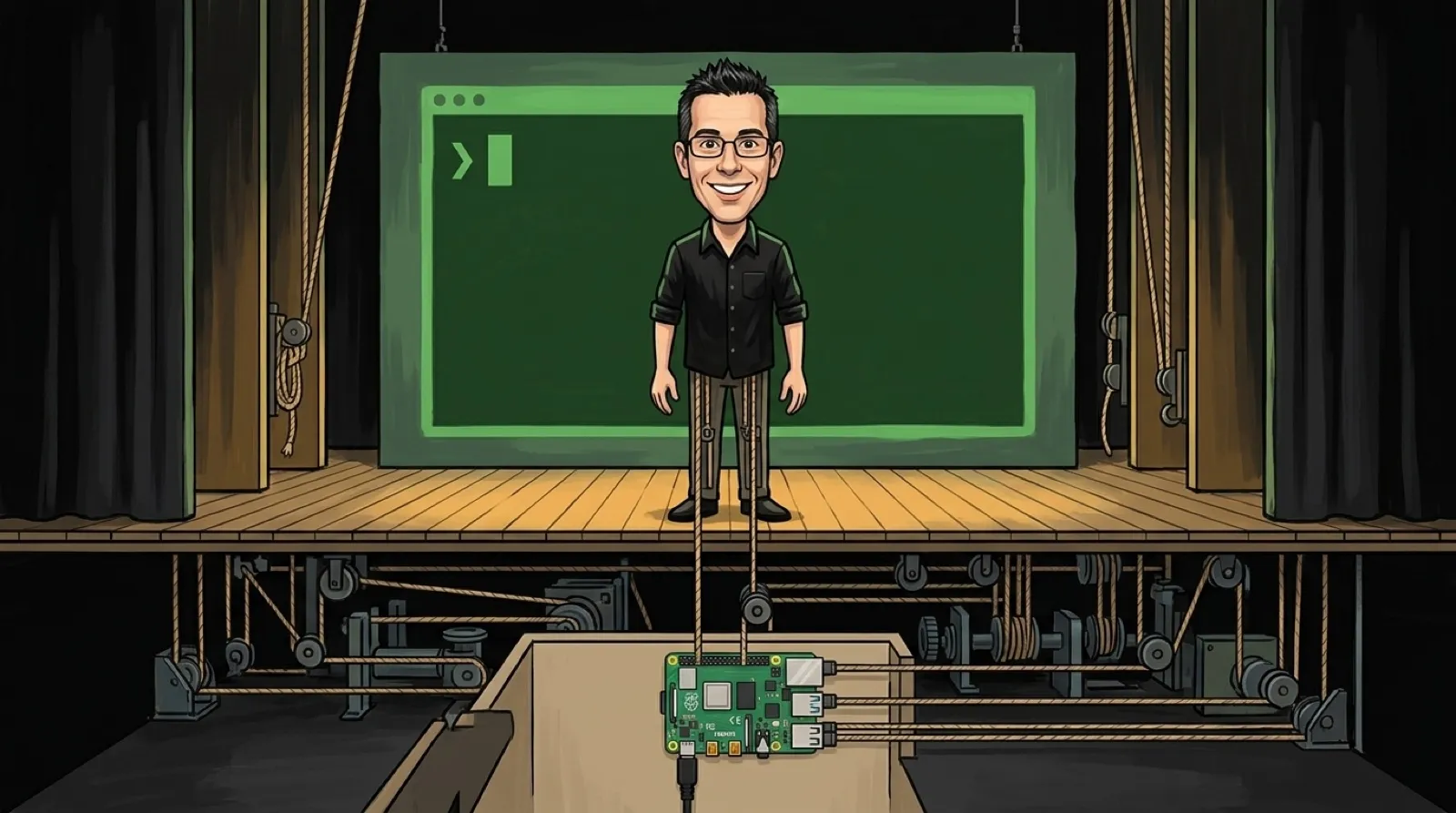
You switch on the Raspberry Pi to use DOS. Linux handles the hardware; the README calls the DOS environment the “only intended user interface.” Pi-DOS builds that arrangement around Buildroot and a DOSBox-X-derived runtime. Getting to the command prompt is the normal boot path, without a desktop standing between you and the old program you came to run.
Rubén Tomás Alonso, the creator of RePlayOS, identifies Pi-DOS as a standalone side project on its official page. Source and build instructions are public; Patreon supporters can get a ready-to-flash image and PDF guide. That distinction matters if you want the dedicated computer experience without first assembling the image yourself.
The project targets 64-bit Arm boards. Its processor still needs an emulated PC to run x86 DOS software. The DOSBox-X project supplies that ancestry: it supports DOS applications as well as games, and DOS-based Windows versions. That wider ambition helps explain why a dedicated DOS machine can have a purpose beyond launching one game. An old spreadsheet deserves a retirement home too.
Buildroot generates embedded Linux systems through cross-compilation. It can build the toolchain, root filesystem, kernel and bootloader. Pi-DOS uses that approach to package the supporting operating system along with the environment you actually see. Linux still has to handle USB, displays and storage while the prompt stays on screen.
The technical reference traces boot through a small C supervisor, the first process Linux starts. It mounts the data storage, prepares configuration and launches the DOS runtime. Video travels through SDL2 to the Linux display interfaces, sound through ALSA, and USB input through Linux before reaching the emulated devices. A game sees its familiar PC environment while the Pi takes care of the actual cables.
Storage makes this more usable than a convincing screenshot. The image has FAT32 boot and data partitions, and the DOS data partition is readable from Windows. Persistent files live there, while the Linux root is embedded in the boot image. A failed data mount can lead to a recovery prompt; the reference says it doesn’t quietly substitute a temporary C: drive in memory. Otherwise you could spend an afternoon saving files that evaporate when the power goes off. Nostalgia has supplied enough of those experiences already.
The same manual says the runtime runs as root, without a separate user-account system or application sandbox. A familiar prompt shouldn’t be mistaken for isolation from whatever DOS software you feed it. CPU speed presets also describe approximate performance classes, so a MHz label doesn’t certify the timing of an original machine.
The README separates confirmed results from ambitions. Pi 3 and Pi 5 boot and keyboard operation have user confirmation, as does Pi 4 after a firmware correction. Earlier Pi 5 persistence, reboot and poweroff checks passed. Broader compatibility and peripheral validation remain open. Those distinctions matter more than how much the startup screen resembles the computer you remember.
Dedicated emulation could make old software easier to keep in regular use, provided the maintenance instructions stay as approachable as the interface. A machine that conceals Linux still needs a route back when its storage fails. The next useful demonstration is somebody opening the program they need, using its actual peripherals and successfully bringing yesterday’s saved work back tomorrow.