
Audio Auto Switch remembers the USB-C headphones your Mac keeps ignoring
A free menu-bar utility watches audio-device connections and selects your saved output, so a working headset microphone stops being a misleading clue.
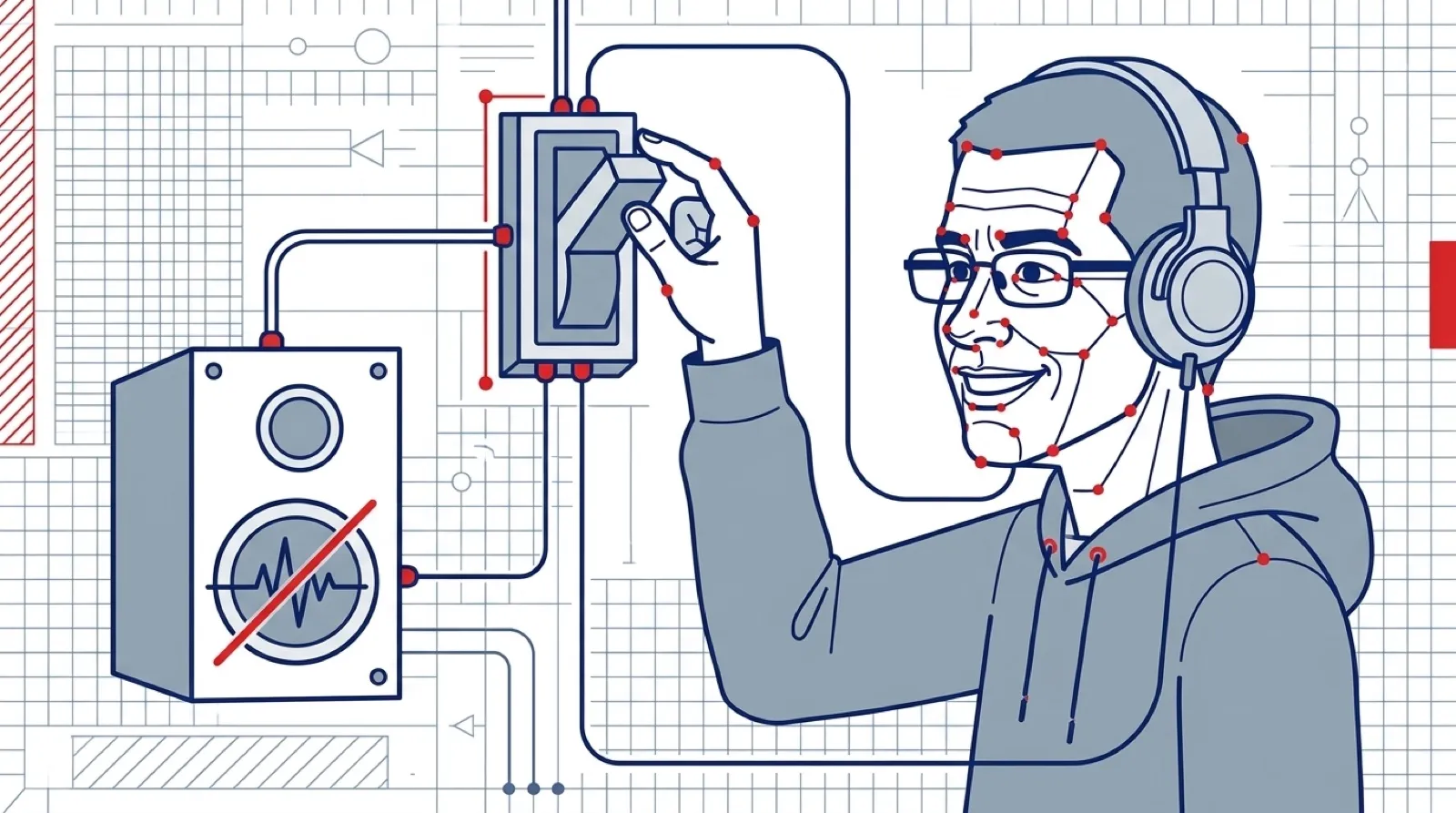
The microphone works. The sound comes out of the laptop. So much for plugging in headphones being the easy part.
Audio Auto Switch’s maker describes exactly that experience with Bose USB-C earbuds and a MacBook Pro. The app puts a headphones icon in the menu bar; connect the device and check it once. Its README says devices are remembered by their “unique ID,” including separate pairs of the same model. The maker’s account and code are the source for these claims; this isn’t a report of testing every USB headset.
The utility listens for Core Audio changes and routes both ordinary sound and alerts to a checked device. Unplugging returns sound to the speakers through macOS’s usual behavior. The project describes its downloadable application as signed and notarized and says it has “no network access.”
The setup starts with a selection, so the app has something to remember. Opening it alone does not identify which of the connected devices should win. The maker’s instructions have the user plug in the headphones, open the menu-bar icon, and tick that device. Open at Login is a separate choice in the same menu.
That distinction is useful when helping someone over the phone. A headset can be visible to macOS, the app can be running, and the preferred output can still be unchecked. Each condition is a different point in the path from plugging in a cable to hearing the next meeting through the intended speakers.
The README also names USB DACs and docks with headphone jacks as intended devices. A dock makes the nuisance particularly easy to misunderstand: connecting one cable can introduce several peripherals at once. A remembered device identity gives the utility a specific target among the things the computer has just discovered.
The maker’s own problem was narrower than a general claim that Mac audio is broken. The Bose earbuds’ microphone moved over while playback remained on the MacBook. Keeping that symptom attached to the fix makes it easier to choose the right tool. Headphones that never appear as an output at all still need a connection or recognition problem investigated first.
A sensible trial uses an ordinary sound at low volume, then one unplug-and-reconnect cycle. The result to watch is the selected output in Sound settings as well as what comes out of the headphones. After that, trying the usual dock connection and a restart checks whether the remembered preference follows the way the machine actually gets used.
The utility’s small scope is appealing: remember a choice the user already made. Its value will depend on how well that choice survives the next round of cables, docks and reconnects.
The next practical check is your own dock-and-headset combination, especially if several checked audio devices can be connected at once.