
MBR vs. GPT: four primary entries against Windows’ 128 partitions
Disk layout, firmware boot support and backup plans matter more than multiplying the biggest partition count.
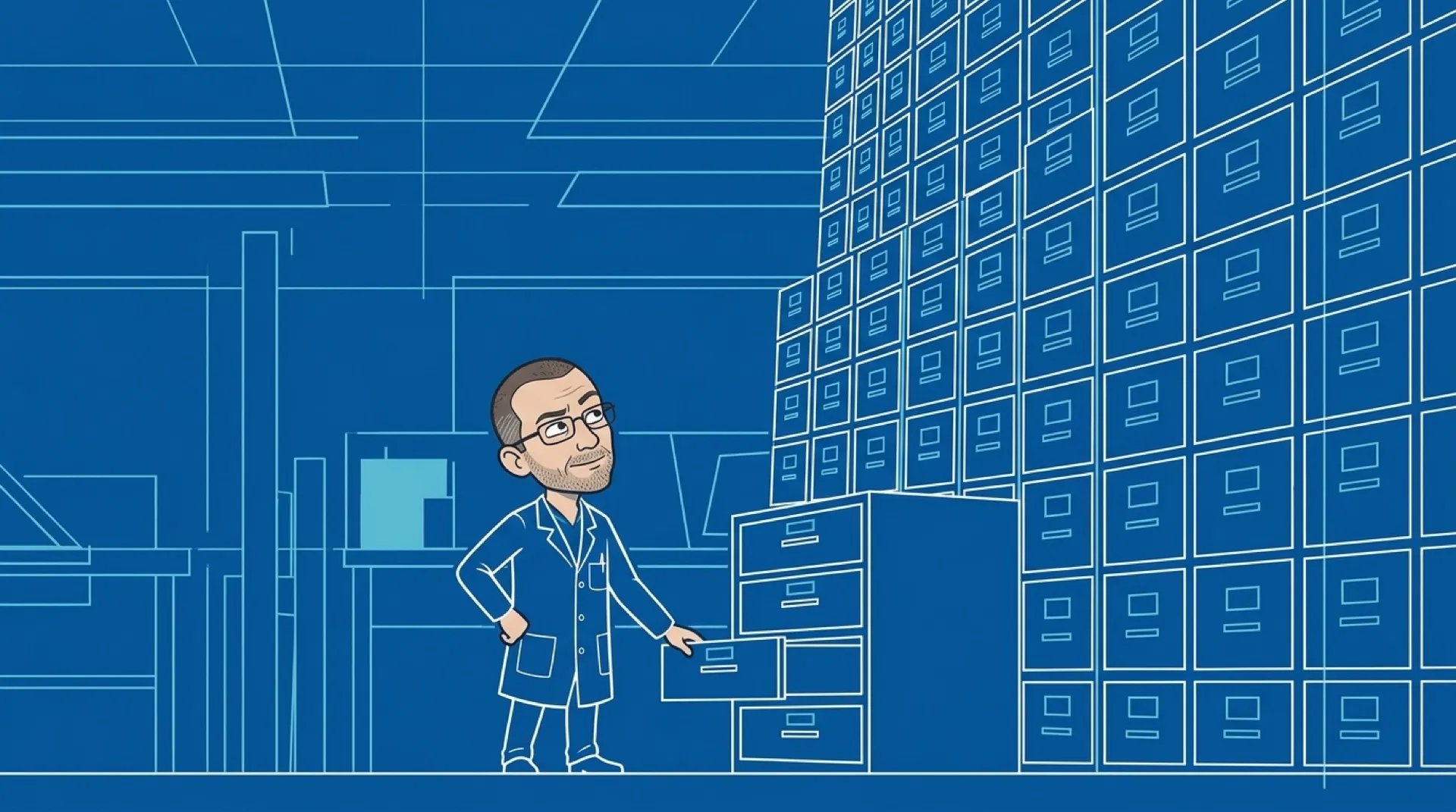
MBR’s four-entry partition table acquired a way to make more room: one entry can describe an extended partition containing logical disks. The disk-layout equivalent of putting a smaller organizer inside the drawer did its job, but it also made “four partitions” a lousy explanation of what the computer could actually hold.
Microsoft’s FAQ spells out that extra structure. Its GPT comparison then makes a different distinction that disappears in plenty of quick answers: Windows restricts GPT to 128 partitions. That is an implementation limit, rather than the universal meaning of GPT carved onto a stone tablet.
| Layout question | MBR | GPT in the Windows FAQ |
|---|---|---|
| Partition organization | Four table entries; extended/logical structure for more partitions | Partition-entry array; Windows limit of 128 |
| Redundancy described | Older partitioning scheme | Primary and backup tables, CRC32 checks |
| Extra compatibility structure | Native MBR layout | Protective MBR for older utilities |
The table is useful when a layout becomes awkward. It doesn’t measure disk speed, and 128 divided by four would compare unlike things: GPT partitions against MBR’s top-level entries. Thirty-two sounds satisfyingly decisive until you remember the smaller organizer. Math has enough problems without being asked to sell a partition table.
Microsoft describes GPT’s “primary and backup partition tables” and checksum fields. Those are useful integrity features, but a partition table and a backup of your documents perform different jobs. An intact map can still point at damaged files. Nobody wants to discover that distinction while explaining where the photos went.
GPT also carries a protective MBR so older software sees an occupied disk rather than an apparently empty one. That detail makes backward compatibility look less glamorous and more practical: sometimes protecting new data means showing an old utility just enough information to leave it alone.
A computer that reads a disk for data and one that boots Windows from it can have different requirements. Microsoft’s FAQ says Windows doesn’t support UEFI booting from an MBR disk. That is a compatibility question to settle before a conversion, preferably while the machine still starts normally and the coffee is merely coffee.
For an existing setup, the useful first step is an inventory of what is there. The operating system, boot mode, partitions and recovery needs determine whether a change solves a real problem. A larger headline number alone doesn’t justify rearranging the place where the operating system lives.
A migration note should identify the disk by more than its current drive letter. Record its role and the data that must survive, then compare the proposed operation with that inventory. That is a more useful review than assuming a tool selected the intended disk for you.
Future upgrades may give a particular machine a concrete reason to change its disk layout. Until then, a working installation has earned a little more respect than a conversion performed just to win a comparison chart.
The files get first dibs.