
A free offline desktop authenticator imports two-factor codes by decoding QR screenshots from your clipboard
Losing the master password makes recovery planning more important than a convenient import button.
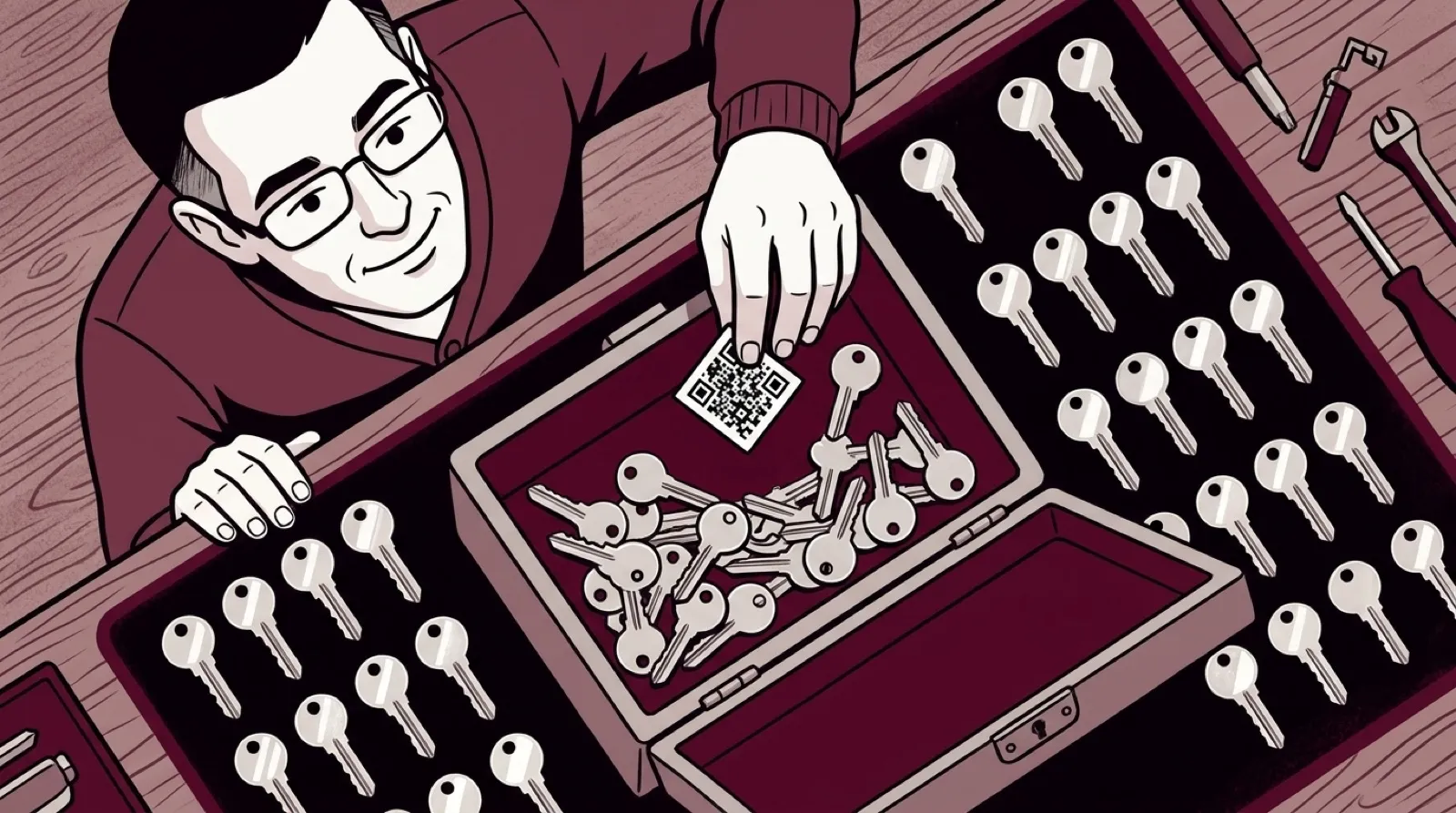
A two-factor setup screen can leave a desktop user pointing a phone at the computer to transfer something the computer already displays. TOTP Vault takes a screenshot of that QR code from the clipboard and decodes it locally. The camera can sit this particular family meeting out.
The project’s README documents builds for Windows, Linux and Apple Silicon macOS. Accounts live in an encrypted vault file unlocked with a master password. QR import accepts PNG or JPEG screenshots up to 5MiB, alongside direct provisioning-URI import and manual entry.
The practical feature is the short route from setup page to usable code. It doesn’t need a camera or an online account to bridge the two. The project says there are no network requests, and its own instructions warn that a forgotten master password cannot be recovered. Offline convenience comes with a very local person responsible for the backup: you.
Try the import with a spare account before moving an important login. The point is to confirm that the code generated by the new authenticator is accepted while another working recovery route still exists. Getting an attractive countdown ring is easy; discovering that the only code generator has the wrong secret is a less festive unveiling.
Clipboard handling deserves care even when no cloud service is involved. TOTP Vault clears copied codes and exported provisioning URIs after 15 seconds if the clipboard is unchanged. Its documentation also notes that clipboard history or other apps may retain copies. Clearing the current clipboard doesn’t reach backward and erase everything another program already collected.
The provisioning URI is especially worth distinguishing from a one-time code. It carries the information another authenticator needs to generate future codes. Treat an exported URI or setup screenshot as something to protect, rather than a harmless picture of a square. The pixels are doing more work than their arts-and-crafts appearance suggests.
Putting both factors on one computer also changes what losing control of that computer can expose. That doesn’t automatically make the arrangement wrong for every person, but the shared-device exposure belongs in that decision. Convenience should answer the actual login problem without pretending the second factor has somehow moved to a separate device by virtue of having a separate window.
The feature will appeal to people who want a small desktop authenticator without turning it into another synchronization service. The useful trial is whether importing, backing up and restoring their own spare account all work as expected.
The QR code can skip its photo shoot.