
Option-Command-drag puts a Mac file in another folder without making another working copy
Finder’s built-in alias behavior also explains what happens when an item leaves the Dock or sidebar.
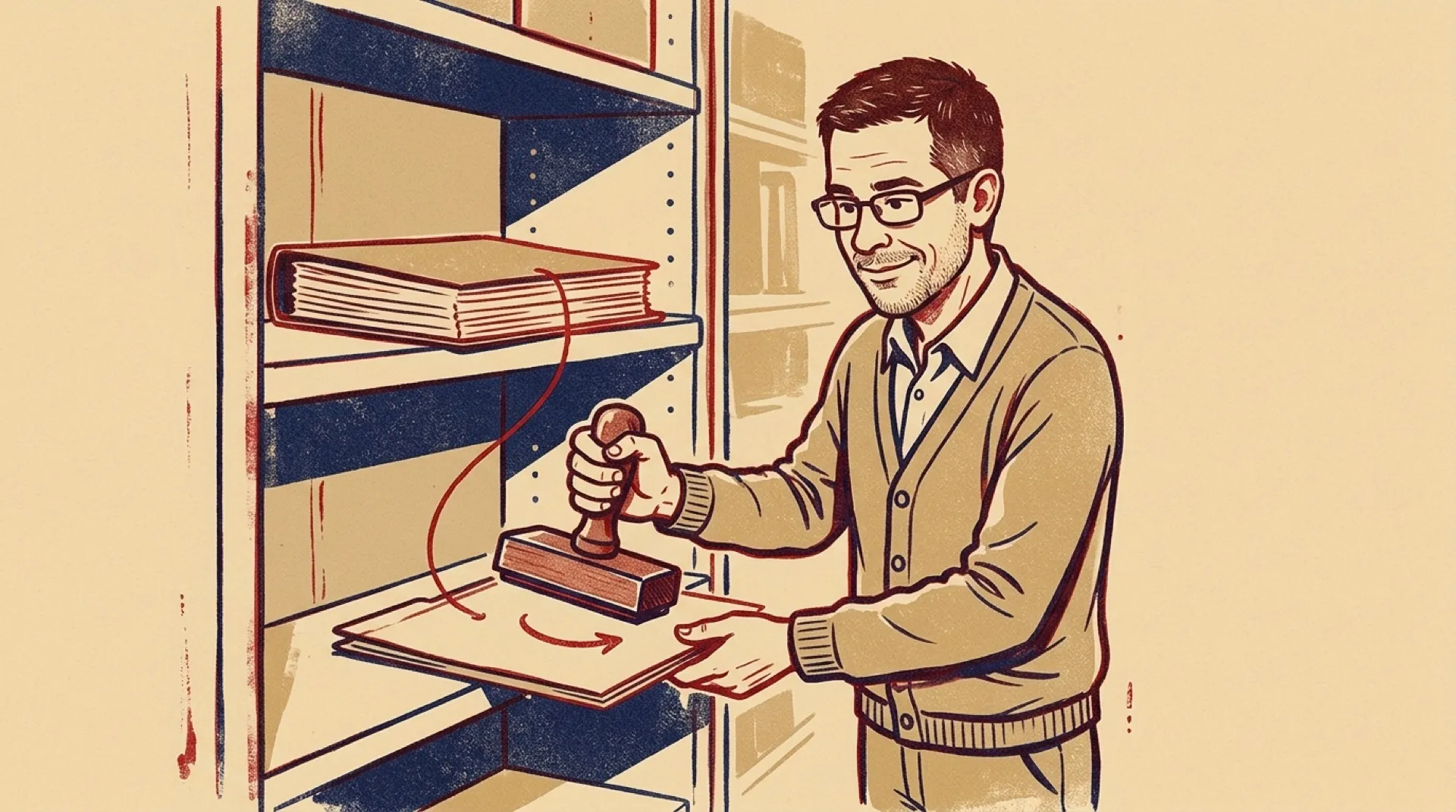
The file doesn’t need another copy. It needs another place to be found.
Finder can provide that with an alias: a reference placed in a convenient folder or on the desktop that opens the original file. Apple’s documented shortcut makes one in a single gesture. Hold Option and Command while dragging the original item to the destination.
That changes the useful part of the drag. A project folder can contain an easy way to reach a shared document without becoming the home of a second document to maintain. The original remains the thing that opens. There is no new final-final-actually-final version waiting to confuse the next edit.
Apple puts it plainly: “the original item opens.” The Mac User Guide also gives the menu route: select an item and choose File, then Make Alias. The resulting alias can be dragged somewhere else afterward. The keyboard gesture combines creation and placement, which saves the little shuffle rather than adding a new capability.
Apple supports aliases for files, folders, apps and disks. Its guide says you can create as many aliases for an item as you want. For somebody who organizes work by project, that means several project folders can point to the same reference material while the actual material has one home.
The distinction is easy to miss when the destination icon looks ready to open. Opening an alias still reaches the original, so editing through it edits that original. Someone expecting an isolated draft has made the wrong object. The convenience comes from a shared target; independent work needs an actual copy.
This also explains familiar parts of Finder. Apple says items in the sidebar and Dock point to original apps, files, folders or disks. Removing a sidebar item removes the reference. Removing an item from the Dock likewise leaves its original on the Mac. An icon can leave the building without taking the document with it.
Apple documents ways to locate the target, too. Control-click a sidebar item and choose Show in Enclosing Folder. In the Dock, Control-click the item, open Options and choose Show in Finder. Those commands are useful when several convenient entry points have obscured where the file actually lives.
Apple’s documented gesture covers creating and placing the alias; it doesn’t promise a separate copy for recovery. Finder aliases also should not be treated as interchangeable with Unix symbolic links in scripts. This gesture solves a smaller, ordinary problem: making something easier to reach.
One document. Multiple entrances.