
USB 2.0 vs. USB 3.0: 480 Mb/s against 5 Gb/s, before the file-copy overhead
A familiar plug can hide a slower connection; the useful purchase check follows the entire route from computer to storage.
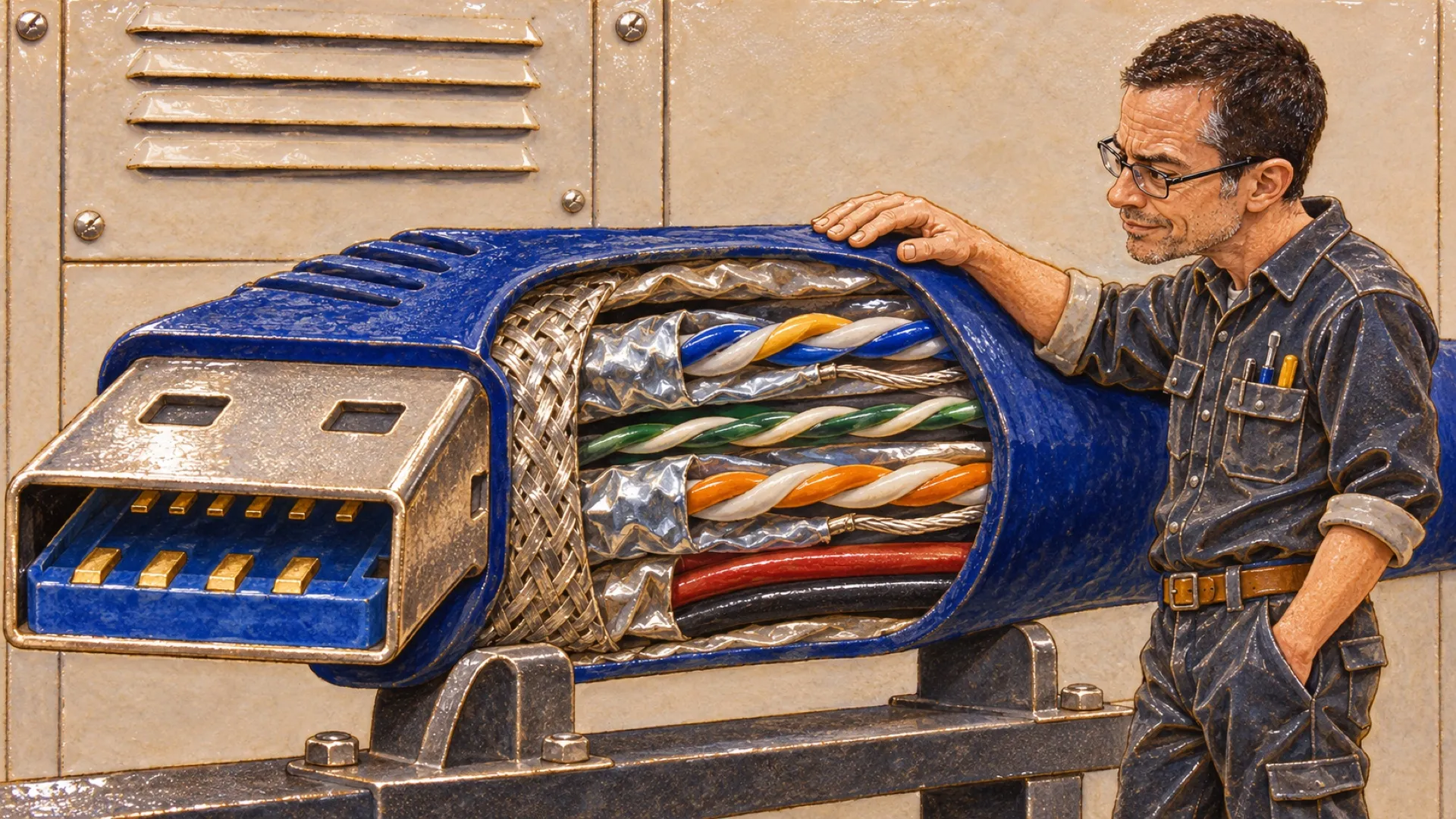
USB 3.0’s 5 Gb/s figure is a lovely big number until a copy dialog puts a much smaller one underneath it. Before blaming the drive, it helps to notice that the box and the dialog may be counting different things. Lowercase b means bits. Your files probably want a capital B.
Sony’s support table pairs USB 2.0 High-Speed with 480 Mb/s and USB 3.0 SuperSpeed with 5 Gb/s. Converting both to megabits gives 5,000 divided by 480, or approximately 10.4. That is the clean comparison the labels support, before asking how a particular storage device performs.
| Comparison | USB 2.0 High-Speed | USB 3.0 SuperSpeed |
|---|---|---|
| Listed raw rate | 480 Mb/s | 5 Gb/s, or 5,000 Mb/s |
| Raw rate divided by eight | 60 MB/s | 625 MB/s |
| What that conversion means | Arithmetic ceiling before overhead | Arithmetic ceiling before overhead |
Dividing by eight produces bytes, but it doesn’t remove the work involved in transferring them. Those 60 and 625 MB/s figures are arithmetic, not benchmark results. A shop that quietly calls either number a real file-copy speed has skipped the test and kept the trophy (nice efficiency).
The USB-IF legacy cable document describes separate SuperSpeed differential paths alongside the familiar D+/D− pair. That physical distinction matters when a connection looks familiar from the outside. A plug fitting into a hole answers a mechanical question; the data path still needs the right conductors and capabilities.
Sony also says a connection between different versions is limited by its slower device. That gives troubleshooting a sensible order. The computer, intervening connection and storage device all belong in the investigation before anybody orders a replacement because the packaging used a larger font.
A repeatable note could be as plain as a stopwatch result beside the port and cable names. Keep that note with the hardware. Otherwise the same drive can acquire a reputation for being slow when the original observation only described one connection.
A useful test would keep the file set and destination constant while changing one suspected component. Swapping a cable, hub and drive simultaneously might make a copy faster, but it leaves no useful answer about which purchase solved the problem. The next slow connection would send everyone back into the adapter drawer.
The workload deserves a name, too. A measured result should say which files moved between which storage devices through which connection. Without that information, a speed claim can sound portable while remaining tied to somebody else’s setup.
Clear rate labels could make the shopping part easier, although a promise about your files will still need evidence from your files. The copying can wait a moment while the units get sorted out.
A capital B changes that calculation by a factor of eight.